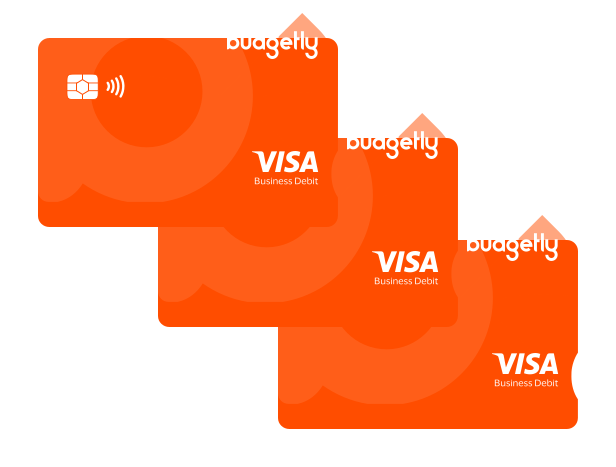



NEW Card & Spend Accounts upgrade guide
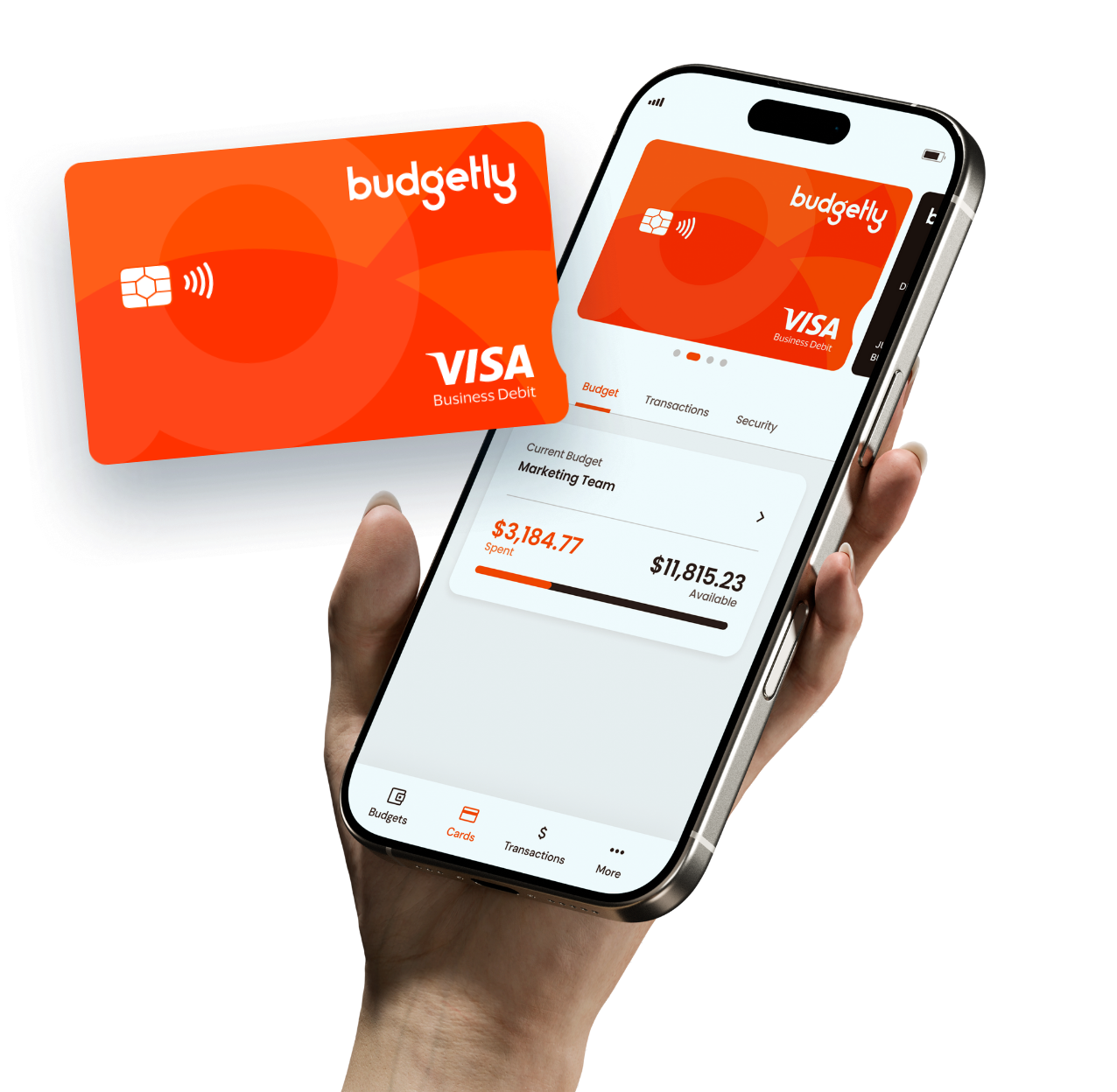
You’re moving to a new Budgetly Spend Account and Visa Business Debit cards
This guide details the steps involved in the upgrade. What you need to do, when to do it, and what to expect.
Your card and Spend Account upgrade will run from 15th January - 16th February, 2026.
It starts when the Spend Account is opened, and finishes when the Cards Account (and Bills Account, if applicable) closes.
Benefits of the new Budgetly Spend Account:
- True Visa Business Debit acceptance – use anywhere Visa is accepted, including SaaS, subscriptions, hotels, and car rentals
- Fewer declines – reduced false payment failures while keeping spend controls in place
- More ways to pay: direct debit for transferring funds to your Budgetly account; BPAY and PayTo for Bill Payments
- Faster statements – access to statements faster / close your books sooner
- Enhanced fraud protection – Visa-grade security and liability protection
- One integrated account – cards and Bill Payments combined under your “Spend” account
- Richer transaction data – improved merchant details and categorisation for clearer reporting
- Premium physical cards – 82% recycled plastic, accessibility notch, and expanded Apple Pay + Google Pay support
Quick links
- Step 1 - Your new Spend Account opens
- Step 2 - Upgrade (reissue) cards — you're in control
- Step 3 - Finish activating new cards and spend leftover balance in Cards Accounts and Bills Accounts
- Step 4 - Old cards are cancelled, Cards Accounts and Bills Accounts are closed
- Step 5 - Completion of upgrade
- FAQ
↪ 15 January, 2026
Your new Spend Account opens
When your new Spend Account opens, you can use both your new Spend Account your existing Cards Accounts and Bills Accounts until the end of the upgrade.
What you need to do
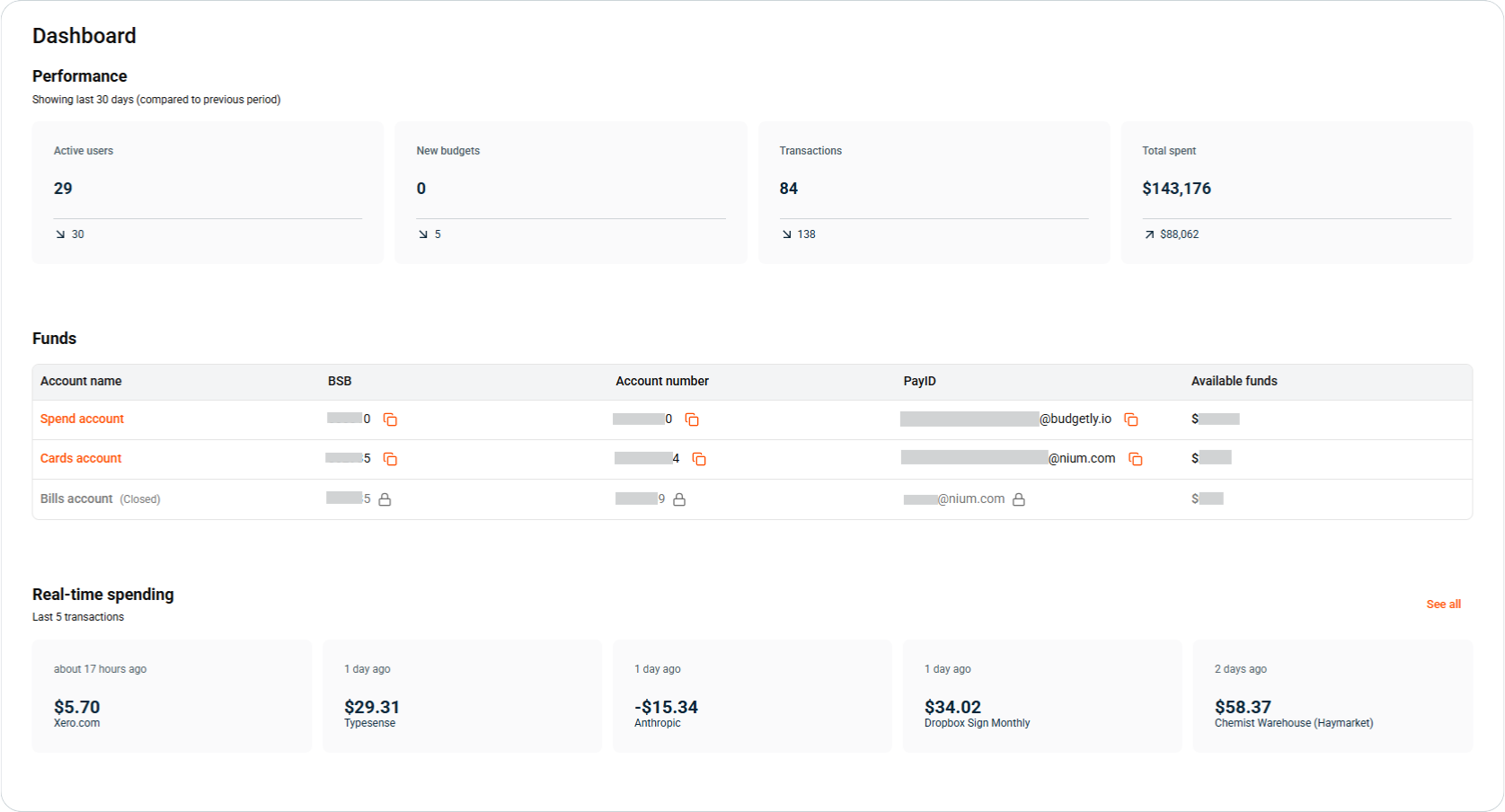
1. Deposit funds from a whitelisted account (as soon as possible) into your new Spend Account so new cards can transact. Get the Spend bank account and PayID from your Dashboard to make the deposit.
We recommend transferring a small amount first to avoid any mistake when setting up the new Spend account details.
2. Confirm your Business name.
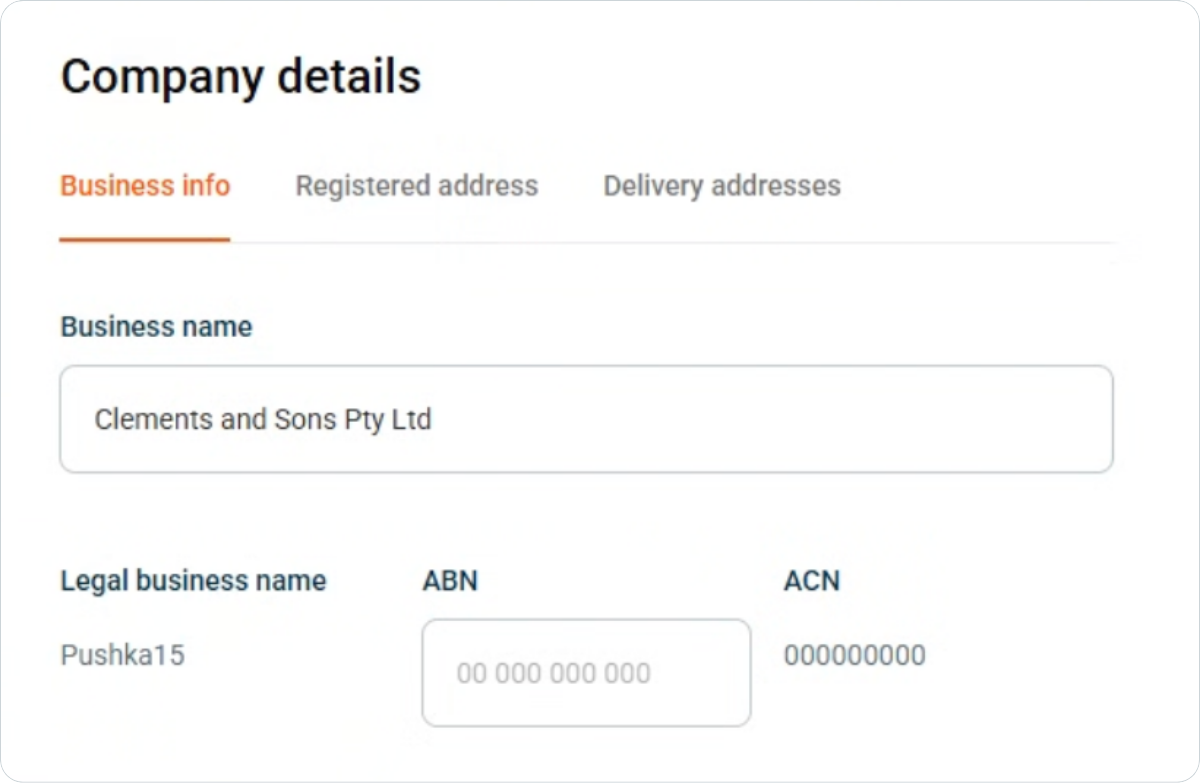
In Budgetly (Settings > Company), confirm the "Business name" as this name is what appears printed on the new Budgetly cards.
Good to know
- The first deposit to your new Spend Account may take a few business days, depending your bank’s verification process.
- If you want to deposit money from a new account, first you will need to add the account details in Budgetly to have it whitelisted.
- All new Visa Business Debit cards will display:
- Line 1: card user name (by default) or a custom name
- Line 2: your business name
Helpful links
Deposit money → Help article
Whitelist a new bank account → Help article
↪ 15-30 January, 2026
Upgrade (reissue) cards
During this upgrade period, you can upgrade (reissue) any active cards yourself. We suggest you complete this as soon as possible (ideally before 30 January, 2026).
What you need to do
1. Issue new cards for your team by clicking on the Upgrade now button for each card.
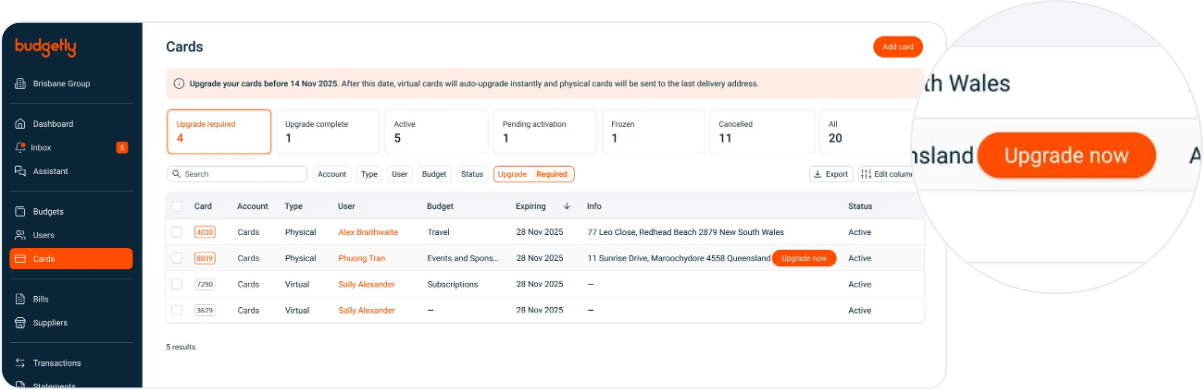
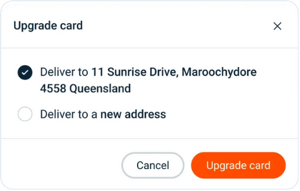
2. To upgrade Physical cards — you will need to confirm the delivery address when upgrading a physical card.
3. Activate your physical cards. While new virtual cards are automatically activated when issued, new physical cards require manual activation.
- Don’t forget to set your PIN.
- Activation steps for physical cards will be in the letter with the new card received in the mail.
4. Update any saved card numbers used for your recurring subscription payments and in vendor accounts.
5. Add your new cards to your digital wallet (Apple Wallet or Google Wallet).
6. Ensure your new cards are assigned to the right budget.
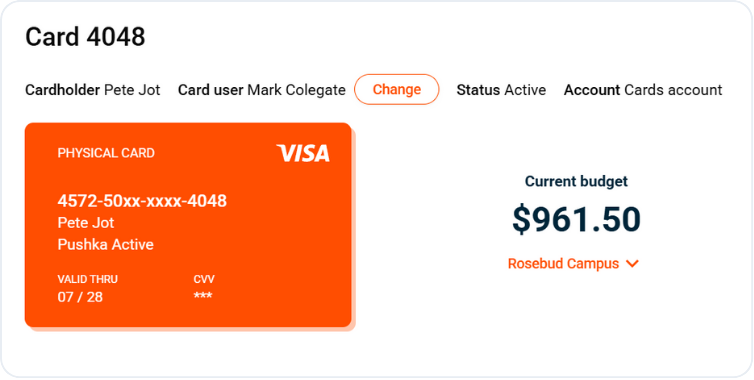
Now you can start paying with your new Visa Business Debit Cards.
Good to know
- You have 15 days to reissue cards yourself. We encourage you to do this before 30 January, 2026.
- When a card is upgraded, the new card issued will appear in the Budgetly mobile app (along with the old card which will disappear once it has been cancelled).
- On 2 February, 2026, all outstanding old cards will be upgraded. Physical cards will be sent to the existing delivery address.
Reminders you will receive
- 15 January, 2026: "Reminder: Deposit funds into your Spend account and reissue your cards now."
- 22 January, 2026: "Don’t forget: upgrade and replace your Budgetly cards now."
- 29 January, 2026: "Final reminder: we will be issuing remaining cards on Monday 2nd February, 2026."
- 2 February, 2026: "We have upgraded and re-issued any remaining cards automatically."
- 9 February, 2026: "Reminder to activate physical cards & add to digital wallet."
- 16 February, 2026: "Old accounts closed and old cards deactivated today"
Important tip
Prioritise high‑usage cards and any cards used for recurring payments e.g software, freight, utilities etc...
Helpful links
Switch budgets → Help article
Activate physical cards → Help article
Add a card to Apple Pay → Help article
Add a card to Google Pay → Help article
↪ 2-15 February, 2026
Finish activating new cards and spend leftover balance in Cards Accounts and Bills Accounts
We suggest you spend as much of the outstanding balance in your Cards Account and Bills Account before the accounts are closed on 16 February, 2026. Any outstanding balances will be refunded.
What you need to do
1. Update all card expenses to your NEW cards.
2. Update all bill payments to pay from your NEW Spend Account.
3. Update all recurring payments on old cards across to the NEW card numbers.
4. Keep your new Spend Account funded to cover day‑to‑day spend.
5. Watch card activations for physical cards in the Cards page within Budgetly.
Helpful links
Review card statuses→ Cards page
↪ 16 February, 2026
Old cards are cancelled, Cards Accounts and Bills Accounts are closed
On completion of the upgrade, we’ll complete your account and cards upgrade. Your old Cards Account and Bills Account will be closed on 16 February, 2026 and remaining funds refunded.
What happens
- Your Account Manager will close your account.
- All old cards will be cancelled.
- Any remaining balances will be refunded to your whitelisted bank account.
About refunds
- Refunds will take a few weeks. However it may be longer if there are pending transactions or existing disputes.
Admins
- Share timelines with your staff and ensure all funding is in place for the new Spend Account.
- Reissue cards and confirm addresses.
- Monitor deposits, card activations and spending shifts from the old Cards Accounts and Bills Accounts to the new Spend Account.
Cardholders
- Activate the card(s) and set a PIN.
- Update saved card details for any subscriptions.
- Add cards to your digital wallet.
- Ensure new cards are assigned to the right budget.
- Use new cards for all new purchases.
Do card numbers change?
Yes. New Visa Business Debit Cards have new numbers. Update any saved card details with your vendors.
Can I keep using my old cards for a while?
Yes. You can use both sets of cards until the end of the upgrade. At that point, the old cards are cancelled.
What if our delivery address has changed?
Reissue the physical card(s) ASAP and enter the correct address. Otherwise, auto‑issued cards will go to your the delivery address we have on file.
Where do refunds go?
Any remaining balances from your old Cards Accounts and Bills Accounts will be refunded to your whitelisted bank account.