
Stop reconciling. Start syncing.
Your bank feed sends Xero a transaction amount and 'VISA PURCHASE.' Budgetly sends the merchant name, category, GST, receipt, budget, user, tags, and notes. Coded, categorised, and receipt-attached before your bookkeeper opens Xero.
See the Xero sync in action ➜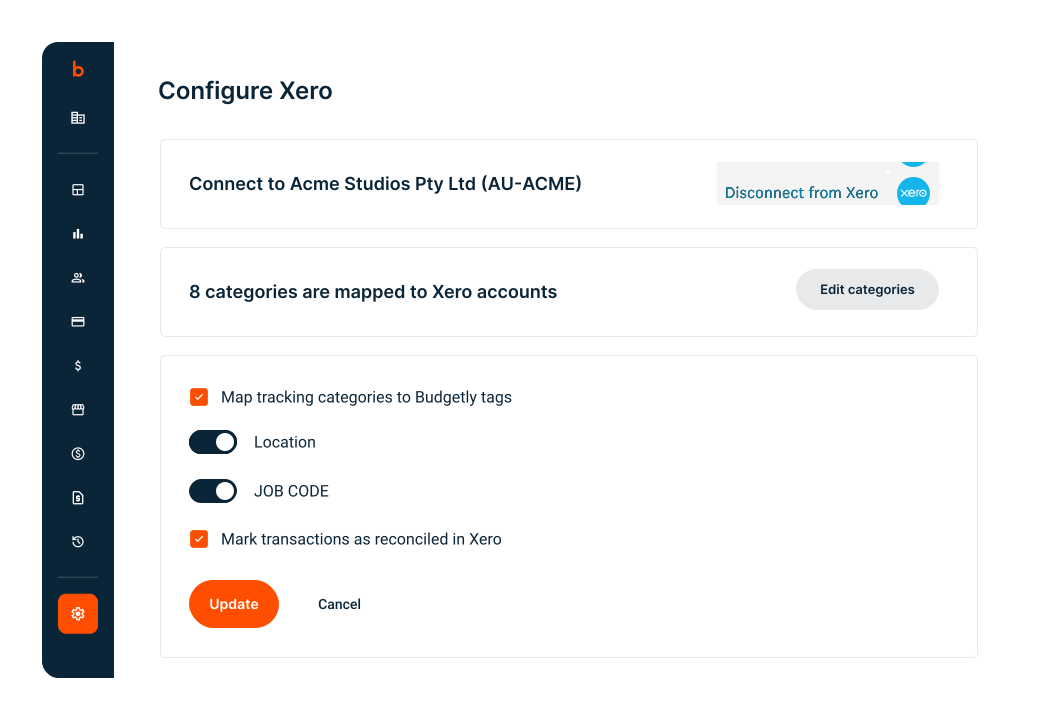
Australia's favourite.
Trusted by organisations managing distributed teams and multiple budgets.

































Your bookkeeper shouldn't be reconstructing reality. The data should arrive ready.
Every Budgetly transaction is coded to your Chart of Accounts, GST-extracted, receipt-attached, and tagged before it reaches Xero. Your bookkeeper reviews and syncs in one click. No reconciliation. No manual entry. The data is already correct.
The highest-rated Xero spend management integration in Australia
Budgetly adapts to your Chart of Accounts. You don't restructure your accounting to fit the tool.
Richer data than any bank feed
A bank feed gives Xero an amount and a generic description. Budgetly gives Xero the merchant name (as a Contact), the category (mapped to your Chart of Accounts), GST (extracted by AI), the receipt (attached automatically), Tracking Categories (mapped as Tags), and a full description with budget name, user name, masked card number, and notes.
“We’ve been able to streamline 3 processes into 1 with Budgetly and I’d recommend this for anyone using Xero.” — Cherise Hickley, Site Sentry Australia
See Bookkeeper AI ➜
Two sync modes. Your bookkeeper chooses.
Most bookkeepers prefer the one-click sync: review what’s ready, check for missing receipts or categories, then press Sync Now. Transactions and receipts transfer to Xero together. For teams that want hands-off automation, enable auto-reconcile and transactions are marked as reconciled in Xero automatically. Budgetly adapts to how your bookkeeper works.
See how sync works ➜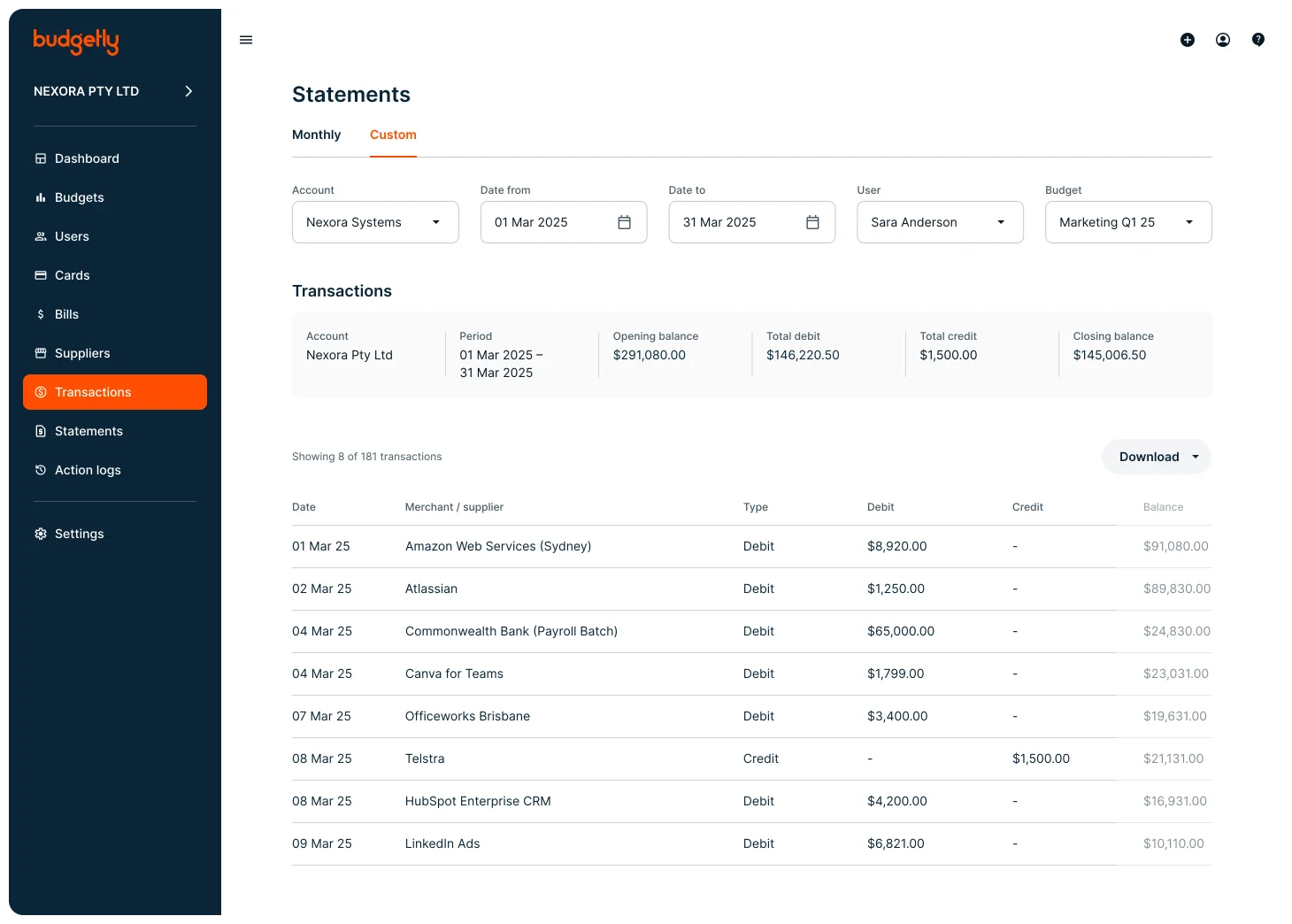
Bookkeeper AI codes everything before it reaches Xero
Every transaction passes through Budgetly’s control loop before sync. Bookkeeper AI reads the receipt, extracts GST, applies the correct category from your Chart of Accounts, and adds up to three tag groups. Accuracy starts above 95% and compounds with every override. By the time your bookkeeper reviews the sync page, the coding is already done.
See Bookkeeper AI ➜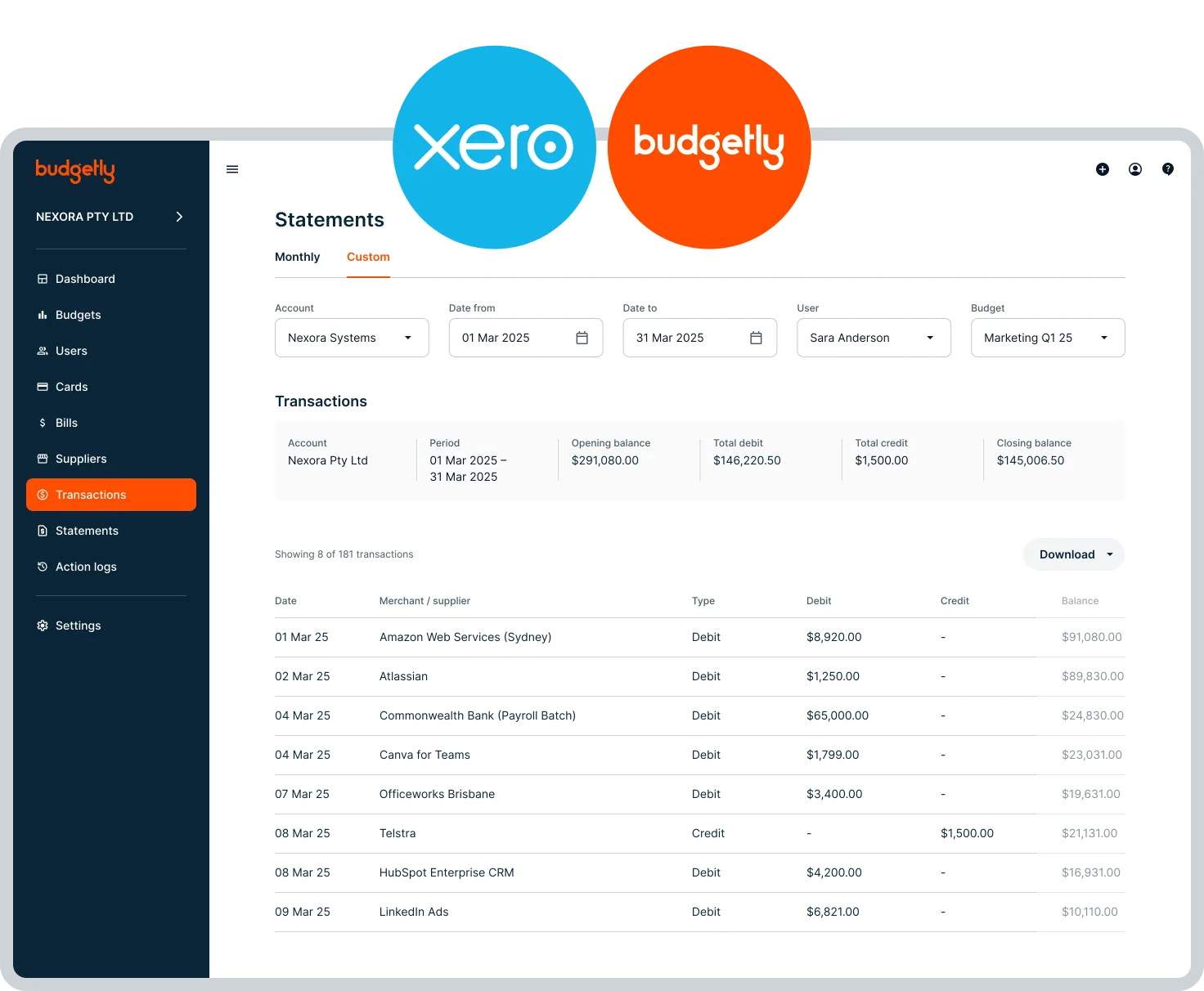
Trusted by teams across Australia
 Read verified reviews ➜
Awards and recognition







Most companies still manage spending the hard way.
Finance teams are expected to control spending, but the tools they use were never built for it. Staff share corporate cards, receipts arrive weeks late, reimbursements are manual, budgets live in spreadsheets, and bookkeepers reconstruct reality after transactions occur.
Modern companies manage spending before it happens.
Instead of reacting to expenses after the fact, finance teams now control spending at the moment it occurs. Budgetly enables this shift. Spending rules, budgets, cards, and expense capture operate inside a single platform, giving finance teams live visibility and control.
Frequently asked questions
What data does Budgetly sync to Xero?
How does the one-click sync work?
Can Budgetly auto-reconcile transactions in Xero?
How does Budgetly map to my Chart of Accounts?
Does Budgetly support Xero Tracking Categories?
How does Bookkeeper AI improve the Xero sync?
Can I sync selected transactions instead of everything?
What happens if I upload a receipt after syncing?
How much does the Xero integration cost?
How do I get started?
Customer Stories

Koiop Connect Saves One Day a Week on Expense Reconciliation
Read how NDIS provider Koiop Connect saves one day a week on expense reconciliation with Budgetly.

Financial Advisory Firm has 10 clients making expenses a breeze using Budgetly!
'Budgetly is so much more user friendly than other options! ' S.Ryan, Head of Financial Operations, Bourke Group …

West Midlands Group move to complete expense automation with Budgetly!
West Midlands Group moved to complete expense automation with Budgetly. Better receipt tracking and regular feature …

Bennett and Bennett Erase Spreadsheets and Saves a Day in Admin
Read how Bennett and Bennett removed spreadsheets from their expense management system and saved one day in admin.
See every transaction in Xero, coded and receipt-attached
Connect Budgetly to Xero in under 3 minutes. See the sync in action.
See how it works in 15 minutes ➜