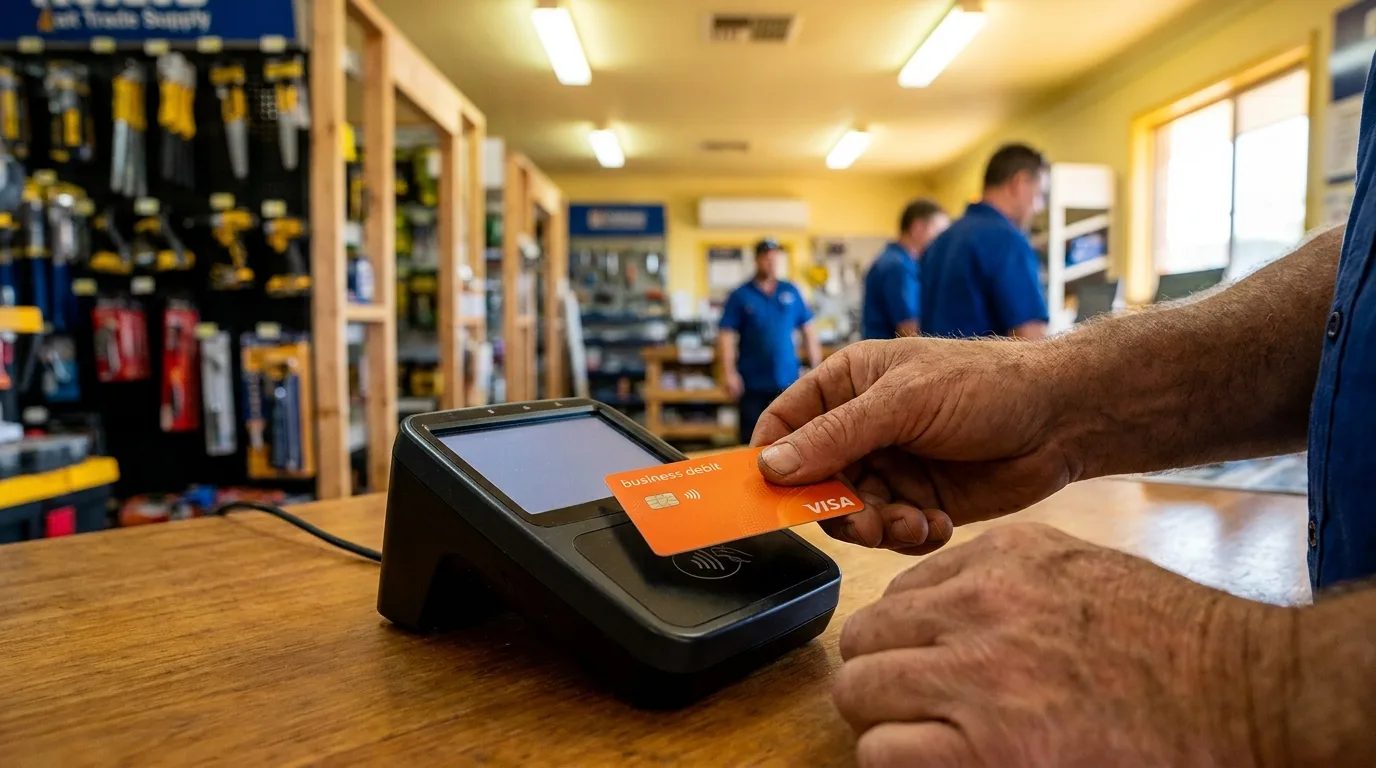


In short: Xero records expenses, it doesn’t control them. To manage expenses in Xero without manual data entry, you connect a dedicated expense management tool that issues cards, captures receipts at the point of purchase, and pushes each transaction into Xero already coded. For Australian teams of 20 to 200, Budgetly is the expense management tool built to work with Xero: it syncs merchant, category, GST, receipt, and tracking category to your Xero org automatically.
Xero handles your accounting. But it does not manage your expenses. It records them after the fact, once someone manually enters the data, attaches a receipt, and codes the transaction. For businesses with 20 to 200 employees making dozens of purchases every week, that gap between the transaction happening and the data landing in Xero is where hours of manual work lives.
This guide explains how to close that gap. You will learn what Xero does and does not do for expense management, how to connect a dedicated expense management tool that auto-syncs transactions into Xero, and how to eliminate the manual reconciliation work that stretches your month-end close.
What Xero does for expense management
Xero is accounting software. It records financial transactions, produces reports, handles BAS lodgement, and manages your Chart of Accounts. For expenses, Xero provides:
Bank feeds: Transactions from your bank account appear in Xero within 24 hours. You manually match them to invoices or categorise them individually.
Expense claims: Employees submit expense claims through Xero’s built-in module. They enter the details, attach a photo, select a category, and submit for approval. The finance team reviews and approves each claim, then processes reimbursement.
Receipt capture (Hubdoc): Xero’s Hubdoc tool lets you forward receipts via email or scan them with a mobile app. Hubdoc extracts some data and creates a draft transaction in Xero for manual review.
Manual coding: Every transaction that flows through bank feeds or expense claims needs to be manually assigned to an account in your Chart of Accounts, have GST coding verified, and have tracking categories applied.
What Xero does not do
Xero is not a spend control system. It does not:
- Prevent overspending. There are no budgets that stop a transaction from occurring. Xero records what already happened.
- Issue cards. Xero does not provide corporate cards with spending limits. Employees use personal cards (creating reimbursement work) or share a company card (creating reconciliation chaos).
- Capture receipts at point of purchase. Bank feeds arrive hours or days after the transaction. Receipt capture depends on employees remembering to submit.
- Auto-code transactions with AI. Bank feed rules handle simple recurring merchants, but new or ambiguous transactions require manual intervention.
- Enforce approval workflows before spend. Xero’s expense claims are submitted after the purchase. The money is already gone.
- Match receipts to transactions automatically. Even with Hubdoc, receipt-to-transaction matching is a manual reconciliation step.
For businesses with fewer than 10 employees and simple expense patterns, Xero’s built-in tools may be sufficient. For teams of 20 or more making regular purchases across multiple employees, the manual work compounds into hours every week. That’s where dedicated expense management software closes the gap.
The manual reconciliation problem
Here is what Xero expense management looks like without a connected expense tool:
- Employee purchases something using a personal card or the shared company card
- Transaction appears in bank feed 24 to 48 hours later as a single line with a cryptic merchant descriptor
- Finance identifies the transaction. Who spent it? What was it for? Which project or department?
- Finance chases the receipt. Sends an email or Slack message to the employee asking for proof of purchase.
- Employee finds the receipt (maybe). Digs through their email, wallet, or glovebox. Often lost or faded.
- Finance manually codes the transaction. Assigns the correct account from the Chart of Accounts, applies tracking category, verifies GST treatment.
- Finance attaches the receipt. Uploads the image and links it to the transaction in Xero.
- Finance reconciles. Matches the bank feed entry to the coded transaction and marks it as reconciled.
Multiply this by 50 to 200 transactions per week across a team of 20 to 200 employees. The result is hours of admin work concentrated at month-end, missed receipts that create BAS compliance gaps, and budget overruns discovered weeks after they occurred. The ATO requires receipts for purchases over $82.50 to claim GST credits. Every missing receipt is a potential compliance risk at your next BAS review.
How Budgetly connects to Xero
Budgetly replaces steps 1 through 8 with a single automated workflow. Here is how:
Step 1: Connect your Xero organisation
Budgetly connects to Xero via OAuth in under 5 minutes. Once connected, Budgetly reads your Chart of Accounts, tracking categories, and tax rates. No manual setup of account mappings is required. Your existing Xero structure is imported automatically.
Step 2: Issue cards to employees
Each employee receives their own Visa debit card (physical or virtual) with a pre-approved spending limit tied to a budget. No shared cards. No personal card reimbursements. See how corporate cards work for the full feature set.
Step 3: Transactions sync in real time
When an employee taps their Budgetly card, the transaction is:
- Captured instantly with merchant name, amount, date, and location
- Auto-coded by Budgetly’s AI engine to the correct account in your Chart of Accounts (95%+ accuracy)
- GST extracted automatically based on the merchant category and receipt data
- Tracking categories applied based on the card’s budget allocation (department, project, cost centre)
Step 4: Receipts matched automatically
The employee receives a push notification prompting them to snap a photo of the receipt. Budgetly’s OCR reads the receipt, extracts the line items and GST, and matches it to the card transaction by amount and merchant. No manual matching required.
For email receipts (online purchases), employees forward the receipt to a dedicated Budgetly address. The system matches it automatically.
Step 5: Coded transactions flow to Xero
Fully coded transactions with receipt attachments sync to Xero automatically. When your bookkeeper opens Xero, they see:
- Transactions already categorised to the correct account
- GST correctly applied
- Tracking categories (departments, projects) already assigned
- Receipt images attached as files to each transaction
- No bank feed items waiting for manual reconciliation
The bookkeeper’s job shifts from data entry to review. They verify the AI coding is correct (it is 95%+ of the time) and approve. Corrections train the AI to improve on future transactions.
What syncs between Budgetly and Xero
| Data | Direction | Detail |
|---|---|---|
| Chart of Accounts | Xero → Budgetly | Imported on connection; updates sync automatically |
| Tracking Categories | Xero → Budgetly | Departments, projects, cost centres mapped to budgets |
| Tax Rates | Xero → Budgetly | GST, GST-free, input-taxed rates imported |
| Transactions | Budgetly → Xero | Every card transaction syncs with full coding |
| Receipts | Budgetly → Xero | Attached as image files to the matching transaction |
| GST amounts | Budgetly → Xero | Extracted from receipts, applied per transaction |
| Bill payments | Budgetly → Xero | Bills created in Budgetly sync as bills in Xero |
| Supplier records | Budgetly → Xero | New suppliers created from bill payments |
Time saved: before and after
| Task | Without Budgetly (manual) | With Budgetly connected to Xero |
|---|---|---|
| Receipt chasing | 3-5 hours/week | 0 hours (auto-captured) |
| Transaction coding | 2-4 hours/week | 0 hours (AI-coded, 95%+ accuracy) |
| GST verification | 1-2 hours/week | 0 hours (extracted from receipt OCR) |
| Bank feed reconciliation | 2-3 hours/week | 0 hours (transactions arrive pre-coded) |
| Expense report processing | 1-3 hours/week | 0 hours (no expense reports) |
| Month-end close (expenses) | 1-2 days | 2-3 hours |
For a business with 50 employees, the typical time saving is 10 to 15 hours per week on expense-related finance work. At month-end, the close process that used to stretch across two days compresses to a few hours of review.
Who benefits from connecting Budgetly to Xero
Bookkeepers
Your reconciliation workload drops dramatically. Transactions arrive in Xero already coded, with receipts attached and GST extracted. You review and approve instead of entering data from scratch. Corrections you make train the AI, so accuracy improves over time. Month-end close shifts from reconstruction to verification.
Finance managers
Real-time budget visibility replaces the monthly statement surprise. You see exactly what has been spent across every team, project, and cost centre without waiting for bank feeds or expense reports. Budget alerts notify you before overspend occurs, not after.
Accountants and BAS agents
Your clients’ data arrives clean. Every transaction has a receipt, correct GST coding, and proper Chart of Accounts categorisation. BAS preparation becomes a review exercise rather than a data collection project. You spend time advising, not correcting.
Business owners
You stop signing off on expense reports filled with transactions that already happened weeks ago. Instead, you see live spend against budget and only get involved when an approval is needed for an unusual purchase. The business runs on financial discipline without your daily intervention.
What expense management software works with Xero?
Any tool that manages spend before it hits your ledger should connect to Xero rather than replace it. In Australia the main options that work with Xero are Xero’s own built-in expense claims, receipt tools like Hubdoc and Dext, and full spend-control platforms like Budgetly that issue cards, capture receipts at the point of purchase, and sync coded transactions straight into your Xero org. The right choice depends on team size and how much manual reconciliation you want to remove:
- Under 10 employees, occasional expenses: Xero’s built-in expense claims are usually enough.
- Want better receipt capture but no card control: Xero plus Hubdoc or Dext.
- 20 to 200 employees making regular purchases: a connected spend platform like Budgetly, so cards, receipts, GST and coding are handled before anything reaches Xero.
Comparing Xero expense management options
Xero built-in expense claims
- Employee submits a claim after purchasing
- Manager approves after the fact
- Manual GST coding
- No card controls or spending limits
- Receipt attachment is manual
- Best for: teams under 10 with simple, infrequent expenses
Xero + Hubdoc
- Receipt forwarding and scanning
- Some data extraction (merchant, amount, date)
- Creates draft transactions for manual review
- No card issuing or budget controls
- No automatic receipt-to-transaction matching
- Best for: teams under 10 wanting better receipt capture
Xero + Budgetly
- Individual cards per employee with budget limits
- Transactions captured and coded in real time
- AI receipt matching and GST extraction
- Full Chart of Accounts and tracking category sync
- Approval workflows before spend occurs
- Receipt push notification at point of purchase
- Bill payments with duplicate detection and supplier management
- Virtual cards for online subscriptions with instant issuing
- Best for: teams of 20 to 200 wanting full spend control with zero manual reconciliation
Setting up Budgetly with Xero: step by step
- Sign up for Budgetly. 14-day free trial, no credit card required.
- Connect your Xero org. OAuth connection takes under 2 minutes.
- Verify Chart of Accounts import. Confirm accounts and tracking categories mapped correctly.
- Set up budgets. Create budgets by department, project, or team.
- Issue cards. Assign individual cards to employees with spending limits.
- Configure approval rules. Set thresholds for purchases requiring manager approval.
- Enable receipt notifications. Employees get prompted to capture receipts immediately.
- Review first sync. Verify transactions flowing to Xero with correct coding.
- Train the AI. Correct any miscategorised transactions (improves future accuracy).
- Reduce manual processes. Disable expense claims in Xero and redirect to Budgetly.
The entire setup takes under an hour. Most businesses issue their first cards within 24 hours of signing up.
Frequently asked questions
Does Budgetly replace Xero?
Will connecting Budgetly affect my existing Xero bank feeds?
How accurate is the AI transaction coding?
What happens if a receipt is missing?
Can my bookkeeper still review transactions before they hit Xero?
Does it handle tracking categories (departments, projects, cost centres)?
What about bill payments?
Real outcomes: what Australian businesses report after connecting Budgetly to Xero
Bawinanga Aboriginal Corporation (200+ employees, nonprofits): Eliminated reimbursements entirely across a distributed workforce of 200+ staff. Finance team saves 38 hours per week on expense admin. Transactions flow to Xero automatically with receipts attached.
Sunnyday Carers (250+ employees, NDIS): Replaced petty cash across 40+ group homes with individual Budgetly cards. Saves 15 hours per week. Every transaction codes to the correct Xero tracking category (group home) automatically.
Earth Markets (4 stores, retail): Eliminated petty cash across four retail locations. Saves 30 hours per month at store level and 20 hours per month at head office. CFO reports zero risk in compliance and document management for ATO/ASIC audits.
Faith Christian School (24 cards, education): Replaced bank credit cards that took 2 to 4 weeks to issue. Saves one full week per month of receipt-chasing admin. Every purchase syncs to Xero with the correct school department tracking category.
These results are consistent across Budgetly’s 82 published case studies. The pattern is the same: connect Budgetly to Xero, issue cards, and the manual reconciliation work disappears within the first week.
Stop reconciling. Start reviewing.
Manual Xero reconciliation exists because there is a gap between when money is spent and when the data arrives in your accounting system. Budgetly closes that gap by capturing, coding, and syncing every transaction the moment it occurs.
Your bookkeeper stops entering data. Your finance team stops chasing receipts. Your month-end close compresses from days to hours. And your Xero org stays accurate in real time, not just at the end of the month.
Connect Budgetly to Xero and see the difference in your first week. Or start your 14-day free trial to test it with your own data.
With clean, real-time Xero data you can also build an accurate 13 week rolling forecast — the tool that turns cash flow from a reporting problem into a control you exercise in advance.